






Introduction
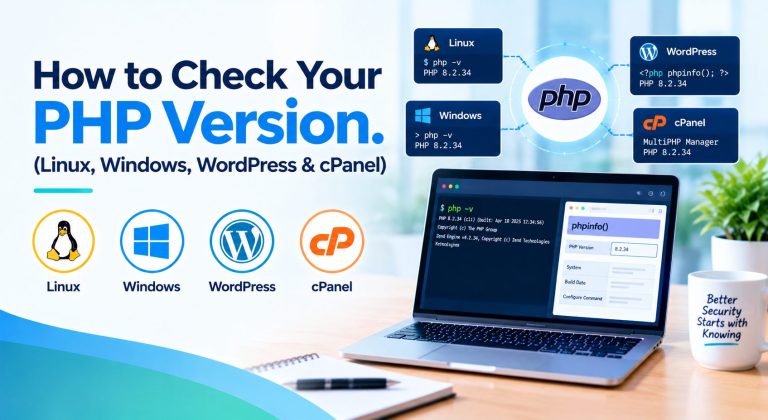
Quick answer: run php -v in a terminal to see the command-line PHP version. For a WordPress site, open Tools → Site Health → Info → Server. In cPanel, open MultiPHP Manager and read the version beside your domain. The terminal and the website can use different PHP versions, so always check the one that serves your site.
Find the PHP Version Your Website Actually Uses
You can check your PHP version in seconds, but the method depends on where PHP runs. On Linux and Windows you use a terminal, in WordPress you use Site Health, and in cPanel you use MultiPHP Manager. One distinction matters most: the command-line version is not always the version your website uses.
This guide shows each method, explains how to read the result and covers what to do when two tools disagree. It also gives the current PHP version and support status, checked against official PHP pages on 27 October 2026, and a short plan for an outdated version.
Before You Check, Know Which PHP Environment You Need
PHP can run in several places at once. A laptop may have PHP for development, a server may have a separate command-line PHP, the web server may use another build, and a control panel may assign a different version to each domain. Each has its own version, so checking the wrong one gives a confident but wrong answer.
| Where PHP runs | Best way to check | What it tells you |
| Local development machine | php -v, or the full path of the bundled php.exe | The PHP your local tools use |
| Linux or Windows server | php -v, then the web server’s PHP-FPM or module | Command-line version first, web version second |
| WordPress site | Tools → Site Health → Info → Server | The PHP reported to WordPress |
| cPanel domain | MultiPHP Manager | The version assigned to that domain |
| Container or Docker | php -v inside the running container | The PHP in that container, not the image tag |
| Managed or unknown hosting | Hosting dashboard or a written reply from the host | The provider’s answer is the authority |
If two rows give different numbers, that is not necessarily an error. It usually means more than one PHP is installed, which the section on mismatches explains.
Juggling PHP across several servers?Share your list and we will map each one to the right check. → Talk to our PHP team
Check the PHP Version From a Linux Terminal
Open a terminal on the server, over SSH if it is remote, and run:
php -v
The first line shows the version number, for example 8.4.27, meaning branch 8.4 and patch release 27. The word in brackets is the SAPI, short for Server API, the interface between PHP and whatever runs it. The PHP manual describes -v as the option that prints the SAPI name and the PHP version. Illustrative output, with your build details differing:
PHP 8.4.27 (cli) (built: [date]) ([build type])
Remember that php -v normally checks the command-line binary in your shell, not necessarily the PHP serving your website. These commands help when the result looks wrong:
- command -v php (or which php): shows which binary your shell runs first.
- php –ini: shows which php.ini and extra .ini files the command-line PHP loads, a point the manual notes is CLI only.
- php -m: lists the loaded PHP extensions.
- update-alternatives –list php: lists installed PHP versions on Debian and Ubuntu.
- dpkg -l ‘php*’ on Debian and Ubuntu, or rpm -qa | grep -i php on Red Hat family systems: lists installed PHP packages.
Package tools differ by distribution, so use the one your system has. If the command is not found, PHP may not be installed for the command line, or your hosting panel may keep its PHP outside your shell path. If several versions are installed, call the one you want by its full path.
Server shows a version you did not expect?Our engineers can trace which PHP serves your site. → Ask a PHP engineer
Find the PHP Version on Windows
Open Command Prompt or PowerShell and run php -v. If PHP is installed and its folder is on the system PATH, the list of folders Windows searches for programs, the version appears. If Windows says the command is not recognized, work through these steps in order.
- Run where php in Command Prompt, or Get-Command php in PowerShell. Either lists every php.exe Windows can find. No result means PHP is not installed or not on the PATH.
- Run PHP by its full path instead, for example C:\xampp\php\php.exe -v. That is XAMPP’s default install folder, so yours may differ.
- Only if you want php available everywhere, add PHP’s folder in Windows Environment Variables under Path. Add a new entry and leave existing ones untouched, then open a new terminal window.
Be careful with the PATH. XAMPP, WAMP and Laragon each bundle their own PHP, and the one listed first wins. Changing the order can switch the PHP that other development tools use, so prefer the full-path method for a one-off check.
Locate the PHP Version Information in WordPress
WordPress shows this in the dashboard. Log in as an administrator, open Tools → Site Health, then the Info tab, and expand the Server section. According to the WordPress documentation, it covers server architecture, the web server and PHP details. The Status tab may also raise a critical issue if your site runs an outdated version of PHP.
Do not confuse four separate components. Site Health lists them in different places:
| Component | Where to find it | What it is |
| WordPress version | Info → WordPress → Version | The content management system itself |
| PHP version | Info → Server | The language runtime that executes WordPress |
| Web server | Info → Server | Software such as Apache or Nginx that serves pages |
| Database | Info → Database | MariaDB or MySQL, which stores your content |
If the screen is unavailable or your host hides details, read the version in your hosting panel or ask the host. The Info screen is read-only, so changing PHP is done at the host. For context, the WordPress requirements recommend PHP 8.3 or greater, and note that older versions still work but have reached end of life and may expose your site to security vulnerabilities.
WordPress warning about outdated PHP?Get a safe upgrade plan with a compatibility list. → Request a PHP migration assessment
Find the PHP Version Assigned to Your Domain in cPanel
Controls differ by host, so treat this as the standard cPanel path rather than a promise. The cPanel documentation says a hosting provider can enable or disable MultiPHP Manager.
- Log in to cPanel for your account.
- Open Home → Software → MultiPHP Manager. If it is missing, your host has probably disabled it, so ask them.
- Find your domain in the list. Parked domains are not listed separately because they alias the primary domain.
- Read the PHP version beside the domain. An Inherited label means it follows the server default, which only the system administrator can set.
- To change it, tick the domain, choose a version from the PHP Version menu and click Apply. If your version is not offered, it is not installed or not available to your account.
- If the controls are unavailable, contact your host.
In short, cPanel is the account-level interface, while WHM is the server administrator’s interface. In WHM, Home → Software → MultiPHP Manager shows and changes a user’s default PHP version. Server administrators can also run grep phpversion /var/cpanel/userdata/USERNAME/DOMAIN, which returns a value such as ea-php81, meaning PHP 8.1, as cPanel documents. EasyApache 4 supports PHP 7.4 and 8.1 through 8.5 according to that page, but your host decides what is installed.
Cannot find MultiPHP Manager or the version you need?We can review your hosting setup with you. → Talk to our PHP team
When the Terminal and Website Show Different PHP Versions
A mismatch is common, and it has ordinary causes: the command line and web server use different binaries, several PHP branches are installed, a control panel sets PHP per domain, PHP-FPM pools run their own version, a container carries its own PHP, a reverse proxy or managed host sits in front, or the website lives on a different server from the one you checked.
Work through this sequence to find the actual runtime:
- Confirm where the site is hosted, since you may be on the wrong server.
- Use an authenticated source first: WordPress Site Health, cPanel MultiPHP Manager or your host’s dashboard.
- On the server, find how the web server calls PHP, through an Apache module or a PHP-FPM service, and run that binary’s version command, such as php-fpm -v (some systems add a version suffix, as in php-fpm8.4).
- In Docker, run docker exec <container> php -v or docker compose exec <service> php -v against the running container, not the image tag.
- Compare the results. If they differ, the website’s value is the one that matters for that site.
If nothing above works and you must confirm what the web runtime reports, use the smallest possible temporary file. Give it a random name, put a single line in it that echoes PHP_VERSION and PHP_SAPI, open it once, and delete it immediately. Avoid phpinfo(), which prints configuration, paths and environment data. Never leave any diagnostic file publicly accessible.
What Is the Latest PHP Version for 2026-2027?
On 27 October 2026, PHP 8.5 is the newest branch, and its latest release is 8.5.12, published on 21 October 2026. Each branch gets two years of active support, then two more years of critical security fixes only, and then reaches end of life, according to the supported versions page. Treat this as a snapshot, because new releases appear regularly.
| PHP branch | Latest verified release | Support status | Official support end date |
| 8.5 | 8.5.12 | Active support | Active until 31 Dec 2027; security until 31 Dec 2029 |
| 8.4 | 8.4.27 | Active support | Active until 31 Dec 2026; security until 31 Dec 2028 |
| 8.3 | 8.3.36 | Security fixes only | Security until 31 Dec 2027 |
| 8.2 | 8.2.35 | Security fixes only | Security until 31 Dec 2026 |
| 8.1 and earlier | None current; 8.1.34 was the last 8.1 release | End of life | No upstream support |
Last checked: 27 October 2026. Verify against the official PHP releases and supported versions pages before you rely on it. The 21 October releases also fixed two critical vulnerabilities, so the patch number matters as well as the branch, and vendors may fix PHP without changing the number. Our remediation guide covers that case. The newest release is not automatically right for every application, because extensions, frameworks and host support all have to match.
On PHP 8.2 or older?Plan the move before support ends. → Request a PHP migration assessment
What to Do After You Discover Your PHP Version
Match your result to a next step instead of upgrading blindly:
- Supported and compatible: keep applying patch releases and note the end date.
- Supported but nearing the end of security support: schedule an upgrade now, as with PHP 8.2 ending on 31 December 2026.
- Out of support: upgrade, or confirm in writing what your vendor still patches.
- Different from what you expected: find out which environment answered, using the mismatch section.
- Missing extensions: list them with php -m and have the host install them for that PHP version.
- Incompatible with your framework or app: test the target version on staging before changing production.
Use a controlled upgrade process and never switch production to the newest branch untested. This compact checklist fits most sites:
| Step | What to do |
| 1. Back up | Take a full backup of files and database and confirm you can restore it |
| 2. Read the notes | Read the PHP migration guide for the target branch on php.net |
| 3. Check compatibility | Run composer show –platform and composer audit in the project, and confirm extensions with php -m |
| 4. Test on staging | Upgrade a copy, run tests and check logs, forms, logins and payments |
| 5. Switch and verify | Change the version, restart PHP services as needed, then re-check the version that serves the site |
| 6. Keep a way back | Know how to select the previous version if something breaks |
PHP Version Problems That Commonly Confuse Website Owners
| What you see | Likely cause | Next safe step |
| php -v shows an unexpected version | Another PHP comes first on the path, or the CLI differs from the web runtime | Run command -v php or where php, then call the intended binary by full path |
| PHP installed but command not recognized | Its folder is not on the PATH, or only PHP-FPM or panel PHP exists | Use where php, run the full path, add to the PATH carefully |
| WordPress shows a different version from the terminal | The terminal checks the CLI; WordPress reports the web runtime | Trust Site Health for the site and compare with the panel |
| One cPanel domain differs from another | PHP is set per domain, or one inherits the default | Check each domain in MultiPHP Manager |
| Host does not offer the version you want | The provider has not installed it or limits your account | Ask the host, or consider a plan or host that supports it |
| Older app breaks after an upgrade | Removed or changed features, or outdated dependencies | Select the previous version, read error logs, fix on staging |
| A required extension is missing | It is installed for another PHP version only | List extensions with php -m and ask the host to enable it for this version |
When a Business Needs PHP Development or Upgrade Support
Many owners finish this with a settings change and a restart. Professional help makes sense when:
- A legacy PHP application depends on libraries that no longer support current PHP.
- An upgrade introduces compatibility problems your team cannot resolve.
- Several websites run inconsistent PHP versions.
- You need an application audit before upgrading.
- Your team lacks capacity to maintain or modernize a PHP codebase.
HireDeveloper.dev offers PHP development and maintenance support, including compatibility analysis, upgrade planning and dedicated PHP developers who work under your direction. A short assessment is often the right first step, because it lists what breaks and what it costs before any code changes.
Keep Your PHP Environment Verified and Supported
Three actions keep this simple. First, check the correct PHP version for your environment, which is the one that serves your site. Second, verify its release and support status on the official PHP pages. Third, test compatibility and plan an upgrade before support ends.
A sensible next step is to write down the PHP version of every site you run, with its support end date, and set a reminder before the earliest one expires.
Want a second pair of eyes on your PHP versions?Our team can check them and flag what needs attention. → Request a free PHP version check